View what's in this topic
Using Production Directives for Printing
Production Directives (previously known as Dynamic Media Selection) enable you to define print production requirements associated with a spread. These directives tell the print controller the specific media and production settings to use when printing each spread.
For example, you may be printing a booklet that uses heavyweight blue paper for the cover page, regular white paper for the body pages, and red paper for section dividers between the chapters of the book. In this case, you could use production directives to assign different media, stored in different paper trays, to improve production control and the overall workflow. When the job is processed, the selected media will be automatically chosen from the appropriate paper tray.
Production directives go beyond basic media selection. Using the CIP4 standard, you can define a wide range of print production attributes organized into intent categories such as Media Intent, Binding Intent, Folding Intent, Layout Intent, and more. This enables automated print workflows where the RIP and print controller can interpret standardized instructions for media, finishing, and production handling.
XMPie production directives are available with different print output formats: PDF/VT-1, PDF/VT-3, VIPP, VPS, PostScript, and PPML/VDX. Choose a format that enables your print server (RIP) to perform the most efficient production.
CIP4 Attribute Categories
Production directives are organized into CIP4 intent categories. Each category contains a set of standardized attributes that describe specific aspects of print production:
|
Category |
Attributes |
|---|---|
|
Media Intent |
Weight, Media Color, Media Type, Coating, Front Coating, Back Coating, Grade, Opacity, Texture, Thickness, ISO Paper Substrate, Media Quality, Media Color Details, Media Type Details, LAB Color Value |
|
Binding Intent |
Binding Side, Binding Type |
|
Color Intent |
Coatings |
|
Folding Intent |
Fold Catalog, Orientation |
|
Layout Intent |
Sides, Spread Type |
|
Production Intent |
Print Preference, Print Process |
|
Stitching |
Staple Shape, Stitch Number |
|
Hole Pattern |
Hole Reference Edge, Pattern |
|
Production |
Copy Count |
|
Product Intent |
Product Type |
|
Custom |
User-defined free-form attributes for non-standard production requirements |
For each attribute, you can determine the type of value you wish to use - dynamic or static:
-
To use a dynamic value, create a content object whose return string defines the production directive value per-recipient. It is important that the return string is in the required print output format.
-
To use a static value, shared by all recipients, type the required string directly in the value field.
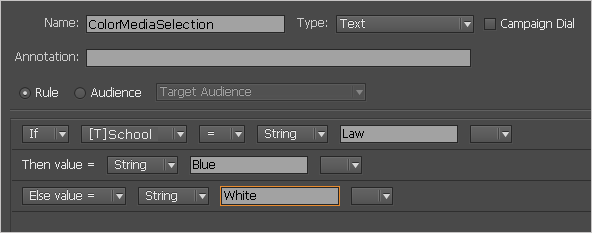
The following figure shows an example content object rule that sets a dynamic media color for the PDF/VT print output format. The media color is chosen based on the School database column: law students receive blue media (the return string is blue), while other students (else value) receive white media (the return string is white).
Configuring Production Directive Attributes
Before assigning production directives to spreads, you can configure which attributes are available in the attribute selection list. This is done through the Configure Production Directives dialog, accessible from the uCreate Preferences dialog.
To configure production directive attributes:
-
Open the uCreate Preferences dialog (Dynamic Content > Preferences).
-
At the bottom of the Preferences dialog, next to Custom Production Directives, click Configure.
The Configure Production Directives dialog box is displayed:
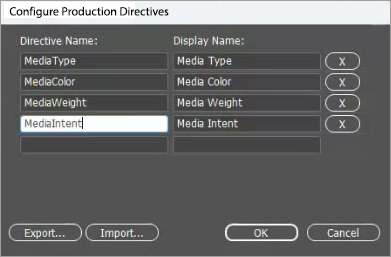
The dialog displays a list of attribute definitions, each with:
-
Directive Name - The name that will be written into the output file (for example, MediaType, MediaColor).
-
Display Name - The name that will appear in the per-page/spread Production Directives dialog (for example, Media Type, Media Color).
-
-
To add a new attribute, type the attribute name and display name in the empty row at the bottom of the list.
-
To remove an attribute, click the X button next to it.
-
Use the Export button to save attribute definitions to an XML file for sharing with other users or across documents.
-
Use the Import button to load attribute definitions from a previously exported XML file.
-
Click OK to save your changes.
Setting Up Production Directives for a Spread
To set up production directives for a spread:
-
Determine the type of directive value you wish to use, dynamic or static.
Note that to use a dynamic value you must first create a content object whose return string defines the value per-recipient.
-
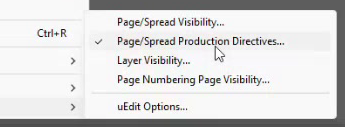
Right-click the gray area next to the spread to which you want to assign production directives, and then select Page/Spread Production Directives.
Tip: You can select multiple pages/spreads in the Pages panel before right-clicking. The production directives you define will be applied to all selected pages/spreads.
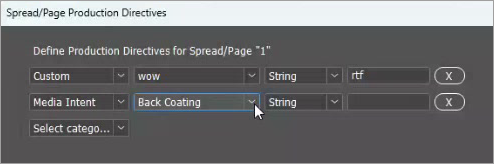
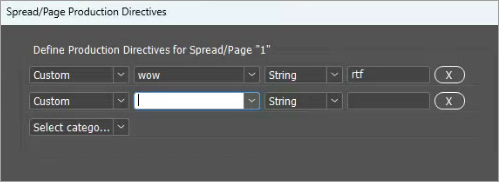
The Spread/Page Production Directives dialog box is displayed:
-
To add a production directive, use the Select category dropdown at the bottom to choose a CIP4 intent category (such as Media Intent, Binding Intent, Custom, etc.). A new row is added automatically with the first available attribute from that category.
-
For each directive row, configure the following:
Field
Description
Attribute
The specific attribute within the selected category. The dropdown shows only the unused attributes from that category. For example, selecting Media Intent provides attributes such as Media Color, Media Type, Weight, and others.
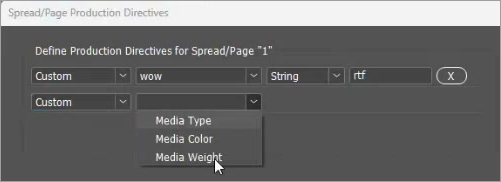
When Custom is selected as the category, the attribute field becomes an editable text field where you can type any custom attribute name. It is pre-populated with the attributes defined in the Configure Production Directives dialog.
Category
The CIP4 intent category for this directive (for example, Media Intent, Custom).
Remove (X)
Click the X button to remove a directive row.
Value
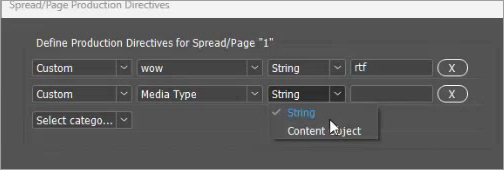
The actual value of the directive. When String is selected as the value type, enter a static text value. When Content Object is selected, choose a content object from the dropdown list.
Value Type
Choose how the directive value is determined:
-
String - Enter a static value shared by all recipients. Make sure this value is compatible with your print output format.
-
Content Object - Select a content object from the dropdown list. For each record, the directive value will be set by the content object's return value, enabling per-recipient values.
-
-
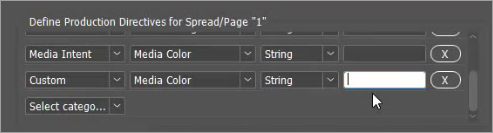
You can add multiple directives to a single spread, mixing CIP4 categories and custom attributes as needed:
-
Click OK to save your changes and close the dialog.
Example: Using CIP4 Media Intent Attributes
The following figure shows a production directive using a Media Intent category attribute. In this example, the Back Coating attribute is selected with a String value type, allowing you to specify a static coating value for all recipients: